Adding Models
This section explains the steps to add xAI models and configure the required access controls.1
Navigate to xAI Models in AI Gateway
From the TrueFoundry dashboard, navigate to 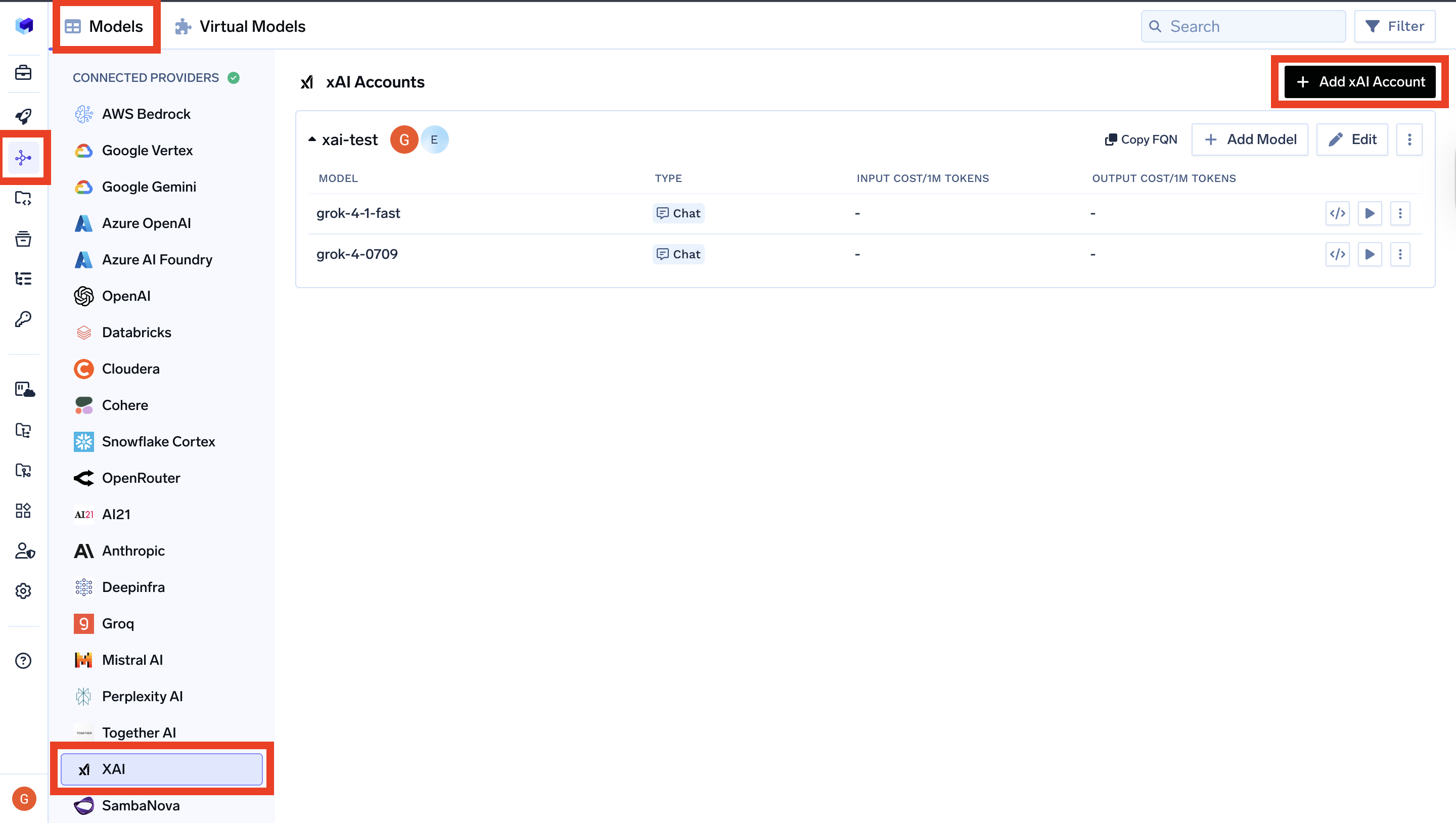
AI Gateway > Models and select xAI.Navigate to xAI Models
2
Add xAI Account Details
Click 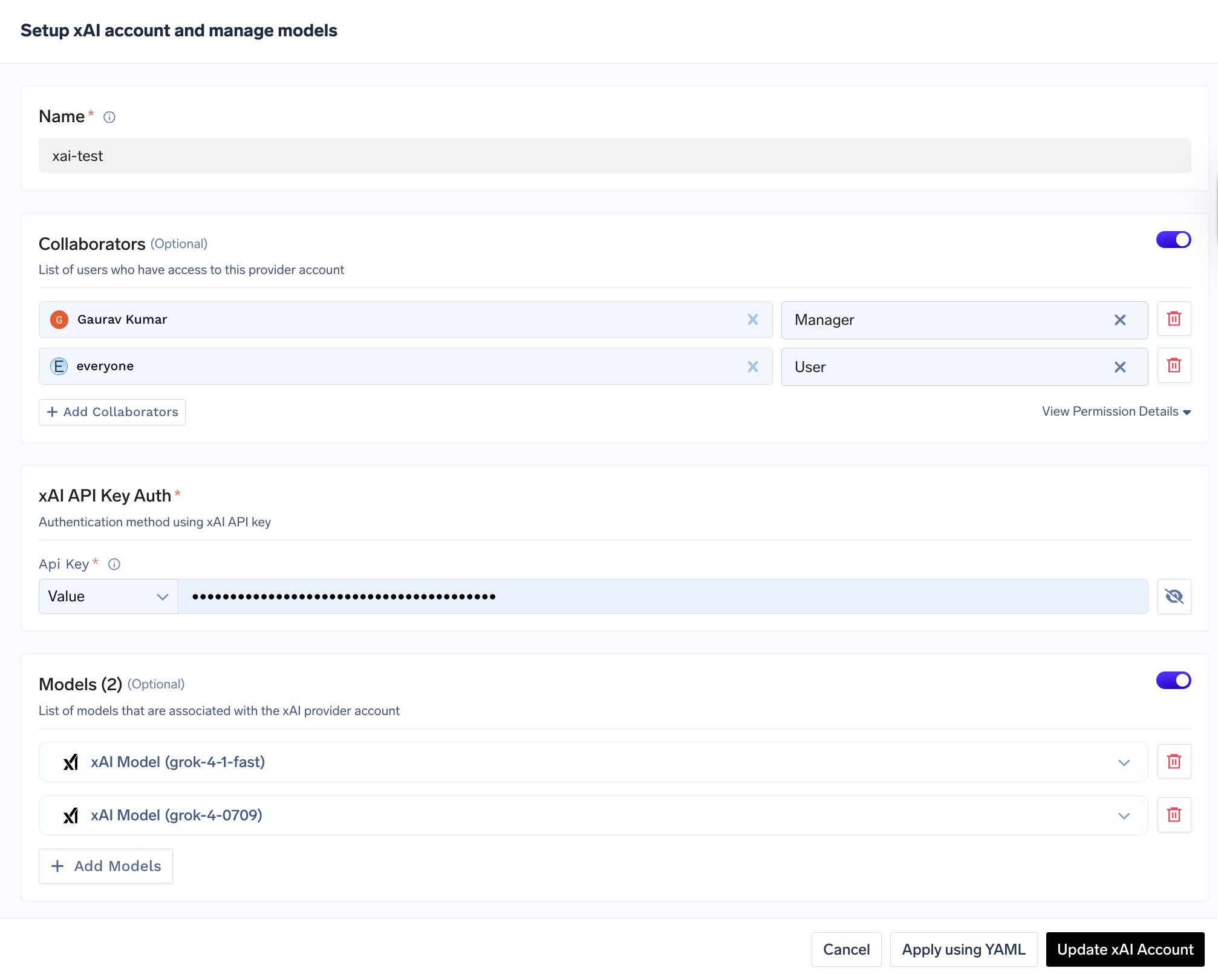
Add xAI Account. Give a unique name to your xAI account and complete the form with your xAI authentication details (API Key). Add collaborators to your account, this will give access to the account to other users/teams. Learn more about access control here.xAI Model Account Form
3
Add Models
If you see the model you want to add in the list of checkboxes, we support public model cost for these models.
(Optional) If the model you are looking for is not present in the options, you can add it using
+ Add Model at the end of list (scroll down to see the option) by filling the form.TrueFoundry AI Gateway supports all chat completion models in xAI. The complete list of models supported by xAI can be found here.
Inference
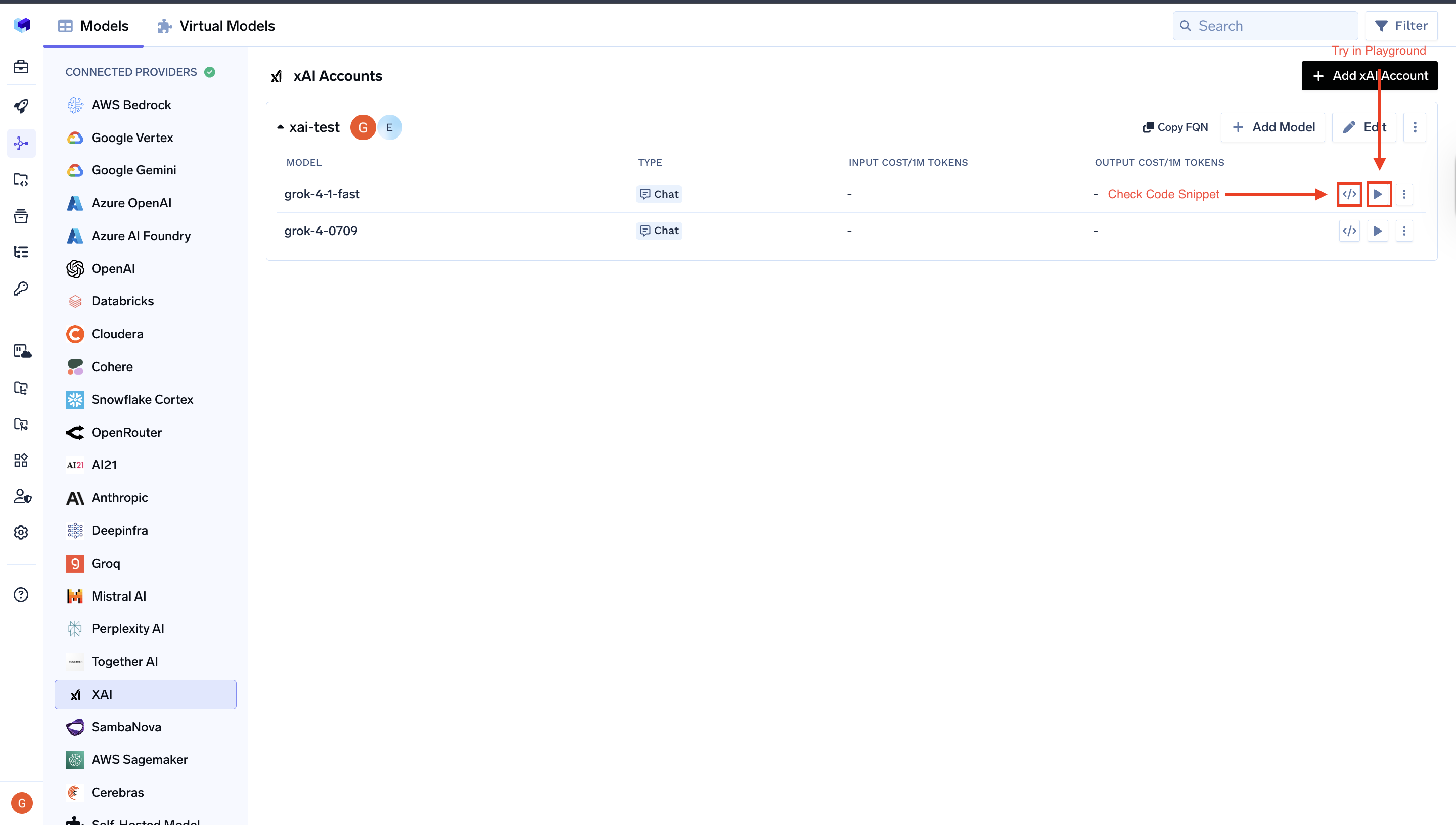
After adding the models, you can perform inference using an OpenAI-compatible API via the Playground or by integrating with your own application.